Workflow
A workflow is a saved sequence of operations that together represent a complete lab protocol. Instead of running actions one-by-one, a workflow allows you to build a full procedure and execute it at once.
Workflow Features
Workflows are designed to be easy to modify while building protocols. You can:
Edit individual operations (change volumes, labware, positions, etc.)
Reorder steps to adjust the protocol flow without recreating everything
Add new operations at any point in the workflow
Delete operations that are no longer needed
Copy and paste a section of steps to quickly repeat common sequence
Save workflows to a JSON file for reuse and sharing
Load workflows from a saved JSON file and continue editing or execute them directly
Reusing a wrokflow with different labware
A workflow is a list of operations, where each operation instructs the pipettor to interact with a specific labware
(identified by its labware_id). Because of this, every operation depends on the correct labware being present on the deck.
As a result, a workflow created for one deck configuration may not work on another deck, even if it contains the same labware
types but with different labware IDs.
For example, if a pick_tip operation was created using labware_1234 (a PipetteHolder), the same operation cannot be
executed on labware_5678 (another PipetteHolder), even though both labware objects are the same type.
To solve this, the system performs labware_id validation whenever a workflow is opened or when Remap is clicked in the
Workflow Builder. The remap dialog allows missing labware IDs to be replaced with available labware of the same type across the
entire workflow, making workflows reusable between different deck layouts.
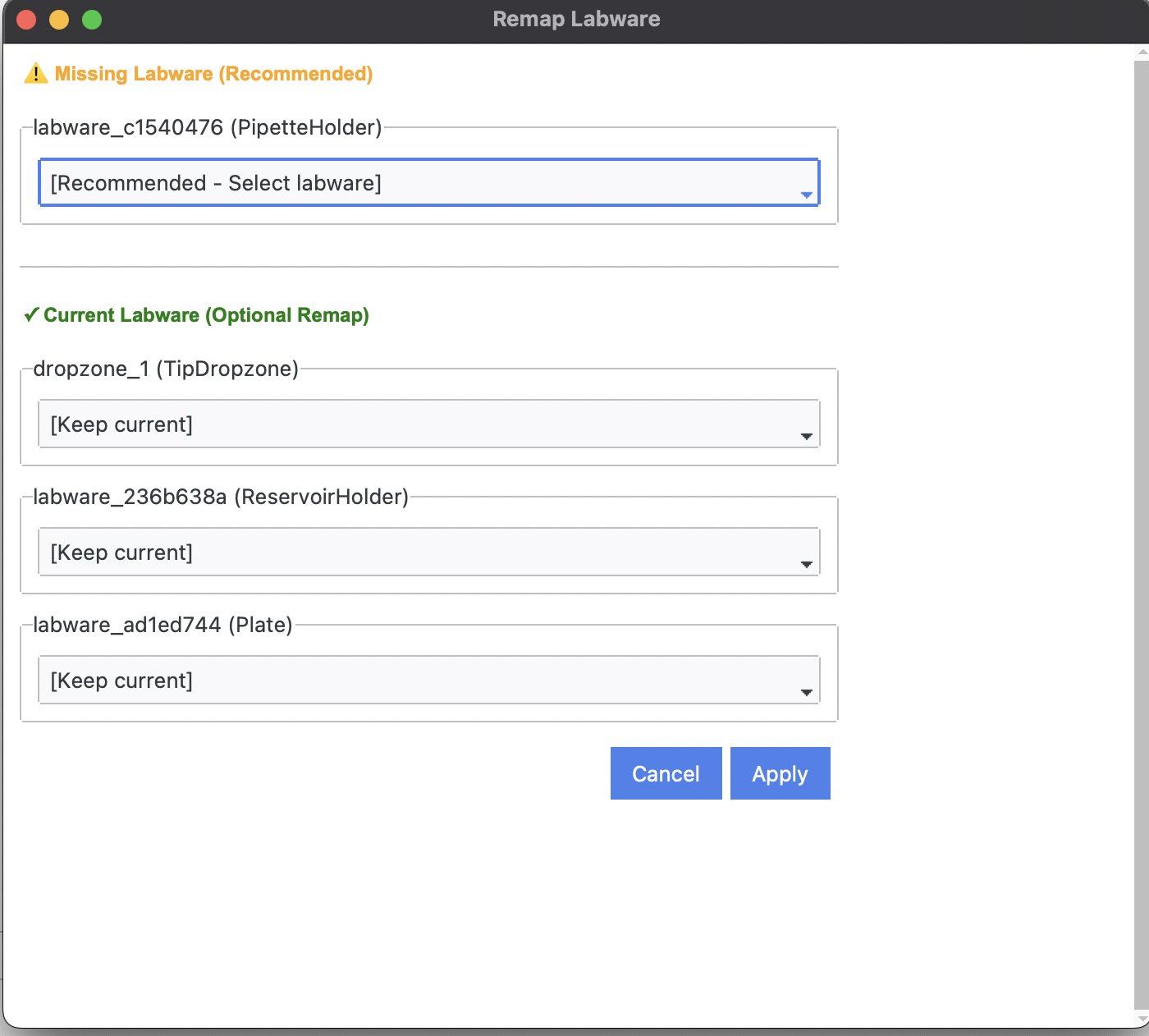
Remap dialog box showing missing and present labware id. Both could be refactored
Reusing a workflow between different PipettorMode
It is currently not possible to use the same workflow for both single and multi-pipettor. Hence a new workflow must be made
Creating a workflow
Custom workflow section in operation tab is responsible for all workflow related tasks.
Create button is used to create a new workflow. Opens Workflow builder Open button opens the selected workflow from listbox. Opens Workflow builder Delete button - removes the workflow from listbox Save to File and Load from file - responsible from saving and loading a wrokflow respectively
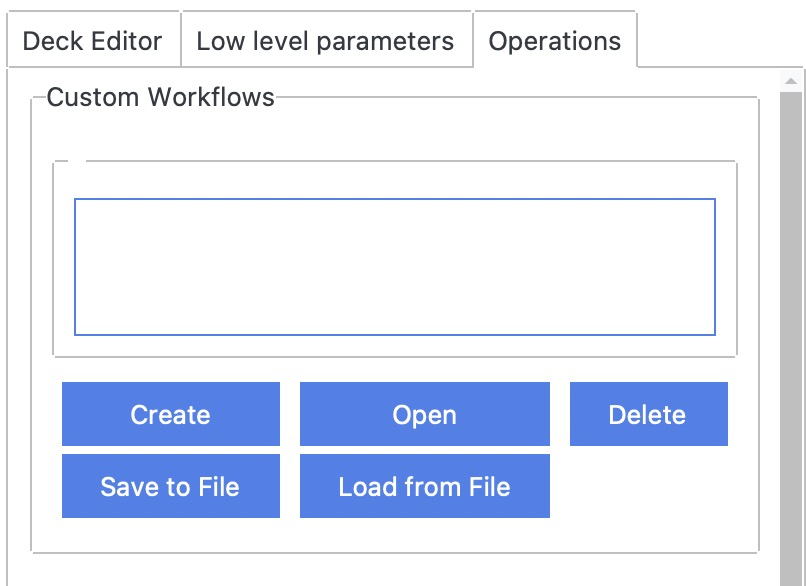
Various buttons responsible for workflow management
Workflow builder
The builder consists of three sections:
Left: buttons representing operations like
pick_tips,add_medium,move_xy(under system operations)Center: set parameters + choose labware for the operation
Right: ordered operation list (info, reorder, edit, delete for each step)
Copy/paste is available at the top of the workflow builder. The textbox under Paste controls where copied steps are inserted.
Buttons found at bottom of listbox:
Create: saves the workflow to the listbox (save to disk using Save in the Custom Workflow section)
Clear: removes all queued operations
Remap: see Reusing a workflow with different labware
Validate: validates the workflow. If successful, it changes to Execute
Close: closes without saving
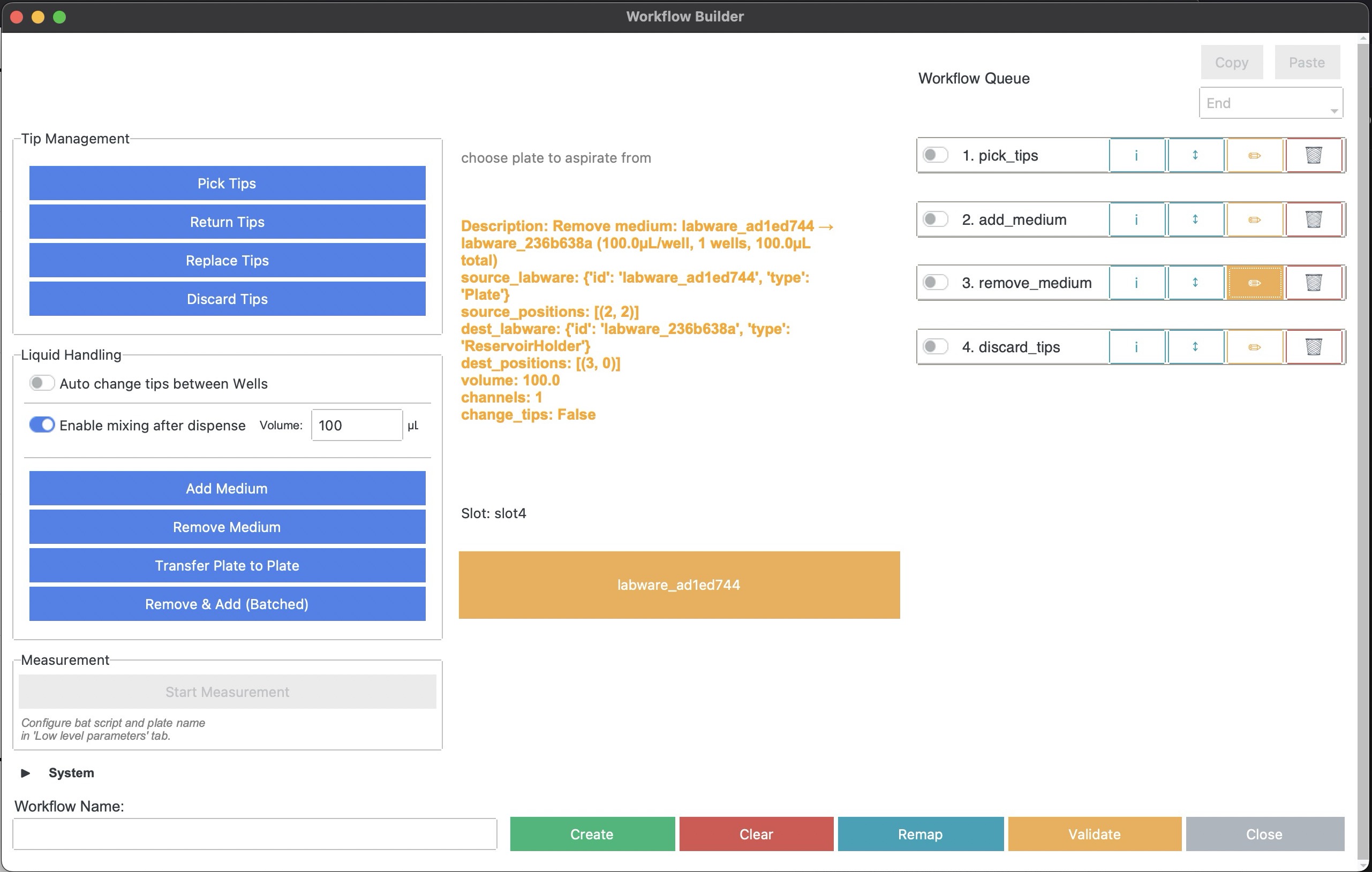
An example workflow builder wherein remove_medium operation is being edited.